ICVFXTOOLS
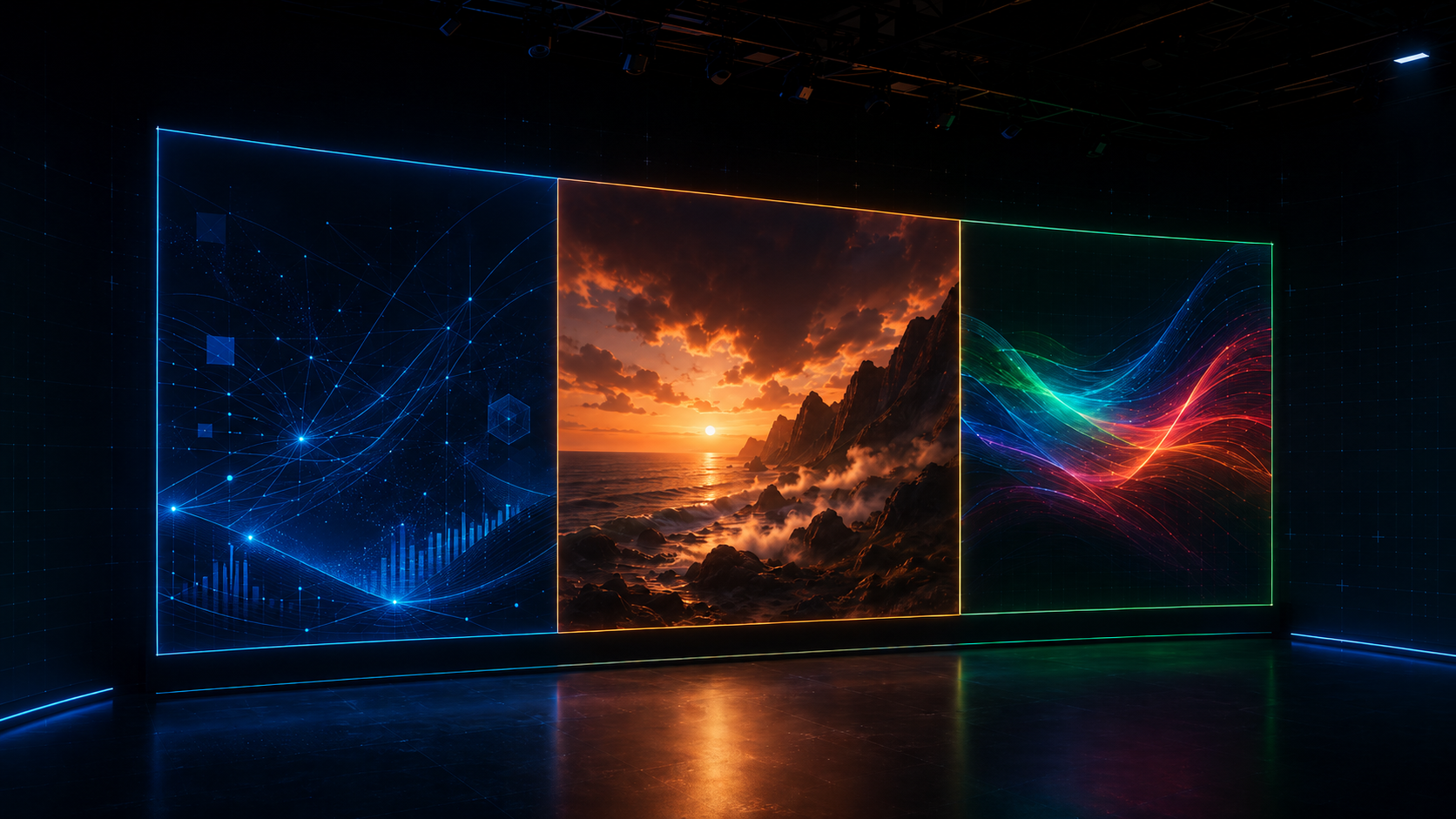
WallSync driving an LED volume

One Master.
Many Clients.
One console.

Hands-on eval on your own stage No card required
1
Master per volume
12
Max Clients per licence
4
Source types: video, screenshare, SDI, test pattern

Why WallSync?

Running a volume by hand means running between machines

Your media, your layout, and a rack of client machines all have to agree on what the wall shows. Do that by hand and you spend the day walking between machines. WallSync puts the whole thing on one Master.

Without one place to run it

  • You walk to each client machine to load the media, line it up, and set it fullscreen, then do it again every time something changes.
  • A client drops out or its window loses focus mid-shoot, and you don't catch it until it is already blank on the wall.
  • Every layout tweak means touching every machine by hand.
  • No single place to see which clients are alive and which region each one is set to render.

With WallSync

  • One Master picks the media and sets what each client renders, no machine hopping.
  • The watchdog on each client lets you restart it, refresh it, force fullscreen, or pull focus back, all from the Master.
  • See which clients are live and which region of the wall each one is set to render.
  • Drive the whole wall over your network, with no costly PTP timing rig to buy.

Anatomy

Four parts, one wall

WallSync has four parts. The Master runs the show, the Canvas Editor lays out what goes where, the Clients drive the wall, and the Watchdog keeps every client reachable from the Master.

Master icon

Master

The main machine. One Master owns the session, hands seats to Clients, runs the Canvas Editor, and drives GO LIVE for the whole volume.

Canvas Editor icon

Canvas Editor

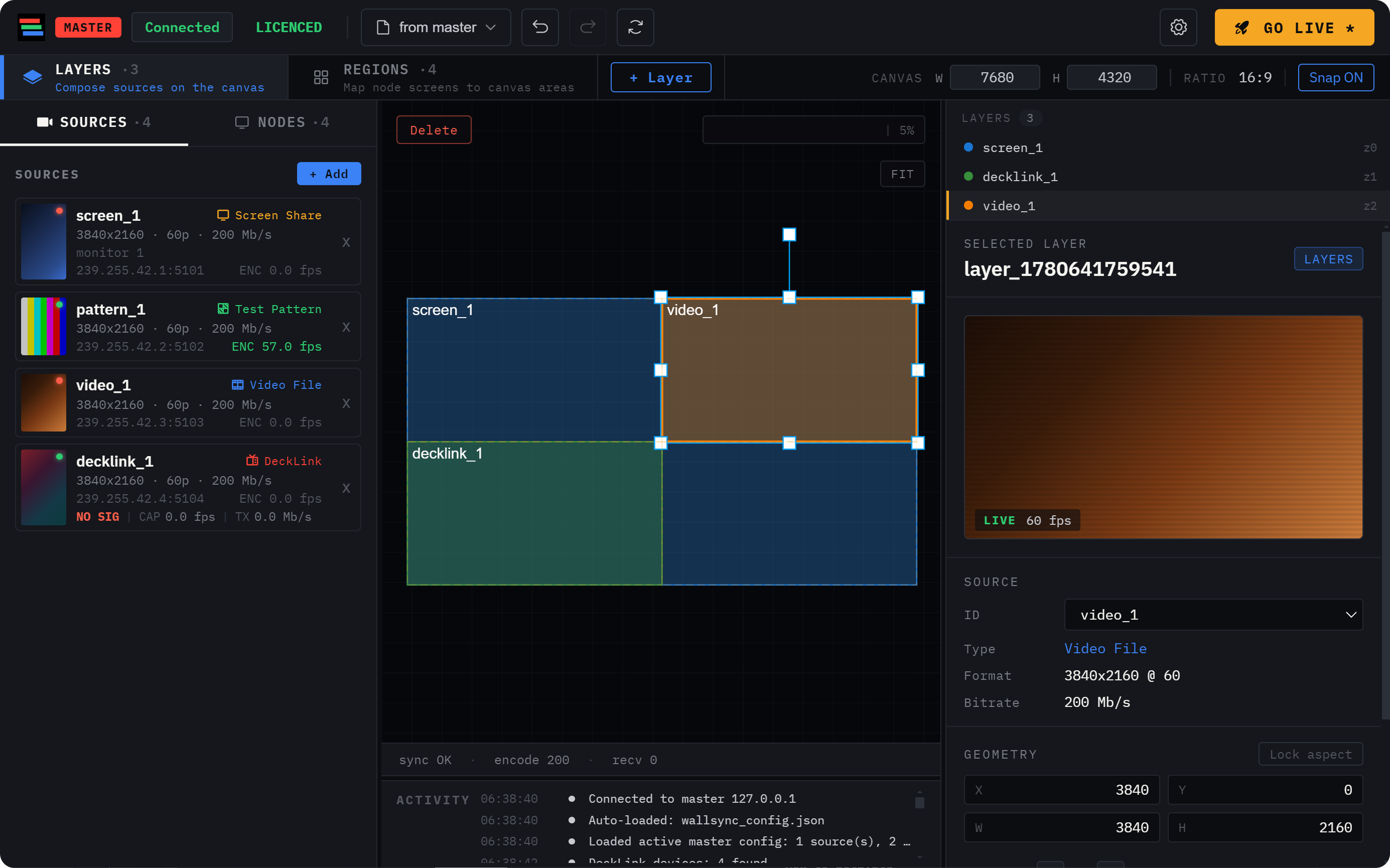
The layout view inside the Master. Pick your media, then set which region of the wall each Client renders and how much. It decides what every section shows.

Client icon

Client

A wall-driving machine. Each Client takes a seat from the Master and renders its assigned region. Clients stay locked together by their GPU sync cards (Quadro Sync or RTX Pro Sync).

Watchdog icon

Watchdog

The client-side agent. It runs on every Client so the Master can tell whether it is alive and restart it, refresh it, force fullscreen, or pull focus back, without anyone walking over to the machine.

Canvas Editor

Compose the wall before you go live

Pick your media, drop it onto the wall layout, and set which region each Client renders. What you lay out in the Canvas Editor is what the Clients put on the wall.

Canvas Editor UI screenshot
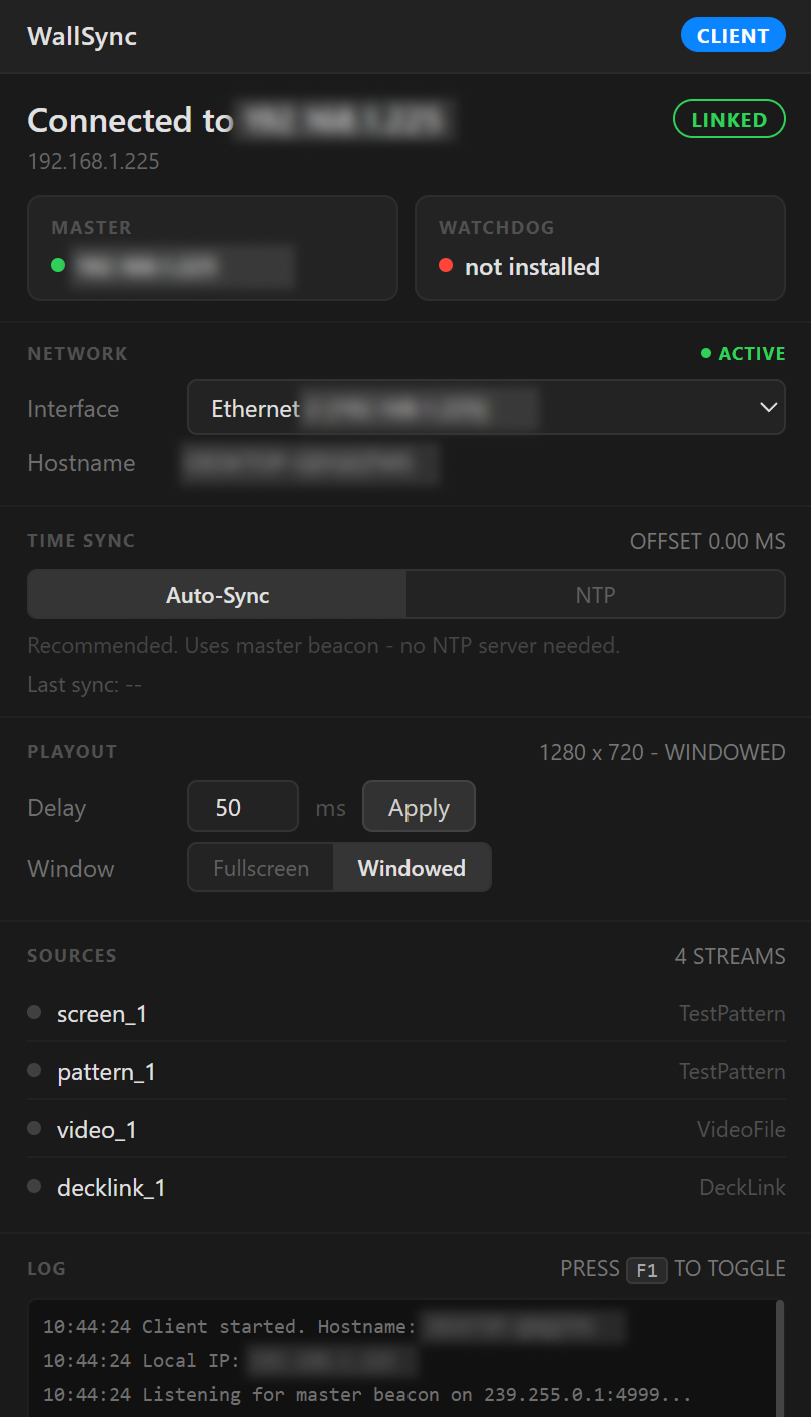
Client UI screenshot
Client

Each Client renders its slice of the wall

Each Client takes the active session from the Master and renders its region of the wall. The watchdog keeps it under the Master's control, so if a client window drops or loses focus you fix it from your seat, not from the machine.

What it does

Built for the volume

Setup

Master and Client model

One Master runs the volume. Each Client takes a seat, joins the active session, and renders its region of the wall.

Sync

Networked, no PTP rig

WallSync drives every Client over your network. Their GPU sync cards (Quadro Sync or RTX Pro Sync) keep the panels locked, so you skip the cost of a full PTP timing setup.

Media

Your sources on the wall

Put video files, a screenshare, SDI capture, or a test pattern on the wall, and lay each one across the regions you choose.

Go live

Run it from one console

Pick your media, set the layout, and hit GO LIVE for the whole volume from the Master, with no machine hopping.

Recovery

Watchdog control

Each Client runs the watchdog, so the Master can restart it, refresh it, force fullscreen, or pull focus back without leaving your seat.

Move licence

Move between Masters

Deactivate the current Master from the WallSync settings panel, then activate the licence on a new machine. No support ticket required.

How it works

Three steps to live

01

Install the Master

Install WallSync on the Master machine and activate your licence with the key from your receipt. The Master binds to that machine on first activation.

02

Connect the Clients

Point each Client at the Master's address over your network. Each Client leases a seat and picks up the active session.

03

Go live

Pick your media, set the layout, and hit GO LIVE for the whole wall from the Master. If a Client drops, recover it from your seat with the watchdog.

Pricing

One flat price. No Client limit.

Every licence pairs to one Master machine and covers every Client node that drives your wall. No per-seat fees, no client counting. The largest configuration we have validated to date is 12 Clients per wall. Subscribe monthly, or own it forever. You can also request a short evaluation before you commit.

WallSync Studio
Evaluation on request
$ 199 / month
Billed monthly · cancel any time
  • 1 Master, no Client limit
  • Video, screenshare, SDI capture, or test pattern
  • Lay out which region each Client renders
  • GO LIVE controls from one console
  • Watchdog control on every Client
  • Move your licence between Masters
  • All updates included while subscribed
  • Email support, target reply in 3-5 business days
Need a custom quote?

Cancel any time; access continues to the end of the paid period.
All payments are processed by Paddle.com Market Ltd, our seller of record. Prices shown in USD. Paddle handles applicable tax remittance.

Questions

FAQ

How does the licence pair to my Master?

On first activation, WallSync creates a stable machine hash and binds your licence key to that Master. Activation or refresh from another machine is blocked until you deactivate the current Master from the WallSync settings panel.

What happens if my Master goes offline?

WallSync keeps running offline for a grace period. If you stay offline too long, production actions are paused until the Master can reach our servers and refresh.

Can I move my licence to a different Master?

Yes. Open WallSync → Settings → Licence → Deactivate this Master. Once deactivated the licence is released and can be activated on a new machine. There is no waiting period.

Can I evaluate WallSync before buying?

Yes. Email support@icvfxtools.com to request a short evaluation licence. Software like this can usually be assessed on a real stage in a few hours, so we provide a brief evaluation window rather than a generic 14-day trial. If it fits your setup, we convert it into a paid licence.

How does sync work, and what hardware do I need?

WallSync coordinates your Clients over a standard network, while a GPU sync card on each Client (Quadro Sync or RTX Pro Sync) locks the panels together. That combination drives a production LED volume without the cost of a full PTP timing rig.

So the one hardware requirement is a supported GPU sync card on every Client. As with any wall, run your media on the real setup before a critical shoot to confirm it meets your show's needs.

Will the sync be good enough for my show?

For most LED-wall and volume work, yes. The GPU sync cards lock the panels at the display level, and WallSync keeps the Clients coordinated over the network, so the wall reads as one image.

Where you would still want a full broadcast-grade timing pipeline is a show that contractually demands it across a media network, which is a more expensive class of system by design. The honest answer for your exact stage is to run an evaluation on it, which is why we offer hands-on eval licences.

How do I cancel, and what's your refund policy?

Cancel from the link in your Paddle receipt email, or email support@icvfxtools.com. Cancellation takes effect at the end of the current billing period; you keep working access until then.

You can request a refund within 14 days of your first paid charge. See the Refund Policy for full terms, including processing-time expectations.

Is WallSync ready for a live stage?

It's actively maintained software that you can use in production. It is still your responsibility to test it with your hardware, drivers, and signal chain before relying on it for a live show, event, or installation. See the Terms & Liability section below for the full disclaimer.

Run the wall from one console

Install the Master, connect your Clients, and hit GO LIVE. Request a hands-on evaluation, or book a quick demo.

Last updated 2026-06-04 · Terms · Privacy · Refund · Liability · Contact